Google Ads MCC Login : If you’ve ever tried managing multiple advertising accounts, you already know how messy things can get. Logging in and out repeatedly, juggling passwords, and trying to track performance across accounts—it’s exhausting. That’s exactly where a Google Ads MCC (Manager Account) comes in.
Think of MCC as your central control room. One login, multiple accounts, complete control. Sounds powerful, right? But here’s the catch—many beginners struggle with how to actually log into Google Ads MCC properly.
This guide walks you through everything step by step, with real, updated insights, so you don’t get stuck.
What is Google Ads MCC (Manager Account)?
Why Businesses Use MCC Accounts
A Google Ads MCC (My Client Center) is essentially a master account that allows you to manage multiple Google Ads accounts using one login. According to official documentation, it acts like an “umbrella account” where you can control several ad accounts from a single dashboard.
Imagine running ads for 10 clients. Without MCC, you’d have to log in and out 10 times. With MCC? One login handles everything. That’s not just convenience—it’s efficiency on steroids.
Agencies, freelancers, and even large businesses rely heavily on MCC accounts because they simplify campaign management. You can monitor performance, adjust budgets, and even generate reports across multiple accounts without switching tabs.
Key Features of MCC
The real beauty of MCC lies in its features. You get:
- Single dashboard for all accounts
- Unified reporting system
- Easy account linking
- User access control
Google also allows you to compare performance across accounts and manage campaigns centrally.
So instead of chaos, you get clarity.
Requirements Before MCC Login
Google Account Setup
Before anything else, you need a valid Google account. This acts as your identity when accessing Google Ads. Without it, MCC login simply won’t work.
But here’s a tip most people miss:
Use a professional email (preferably domain-based) instead of a random Gmail. It builds trust and keeps your business organized.
MCC Account Creation
You cannot log into MCC unless you already have a manager account. MCC is not an upgrade—it’s a completely separate account type.
To create one:
- Visit Google Ads Manager homepage
- Sign in with your Google account
- Enter account details (name, country, currency)
- Save and continue
Once created, your MCC becomes your central hub.
Step-by-Step Guide to Google Ads MCC Login
Accessing the Login Page
First, go to the official Google Ads login page. You don’t need a separate MCC login URL—this is where many beginners get confused.
👉 Simply use the standard Google Ads login page.
Once you enter your email, Google automatically detects whether it’s a regular account or a manager account.
Entering Credentials
Now enter:
- Your Google email
- Your password
If you’ve enabled 2-step verification (which you should), complete that as well.
After login, if your account is MCC-enabled, you’ll land directly on the manager dashboard.
Navigating Dashboard
Once inside, you’ll see:
- List of linked accounts
- Performance metrics
- Campaign overview
From here, you can switch between accounts without logging out. That’s the whole point of MCC—no more account juggling.
How to Create Google Ads MCC Account
Creating from Scratch
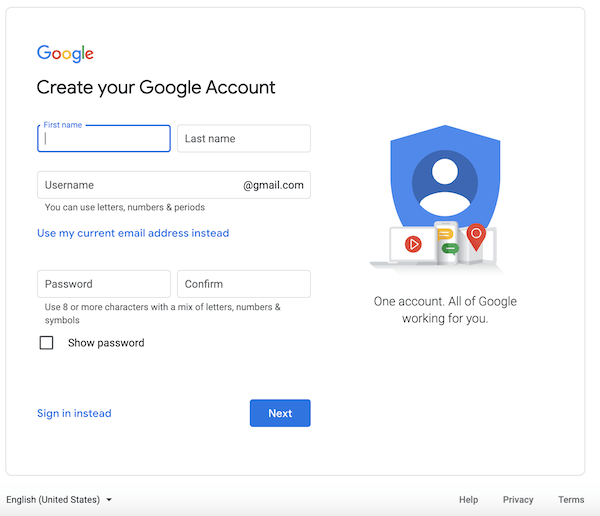
If you don’t have an MCC account yet, creating one is simple.
Steps include:
- Visit manager account page
- Click “Create Manager Account”
- Sign in
- Fill details (account name, timezone, currency)
- Click save
Google allows up to 20 accounts per email, including manager accounts.
Setting Account Preferences
When setting up:
- Choose correct timezone (can’t be changed later)
- Select currency carefully
- Define account purpose (agency or personal use)
These settings impact reporting and billing, so choose wisely.
How to Link Accounts to MCC
Sending Link Request
To manage accounts, you must link them to your MCC.
Steps:
- Go to Accounts section
- Click “+” button
- Select “Link existing account”
- Enter Customer ID
- Send request
This sends an invitation to the account owner.
Accepting Invitations
The account owner must:
- Go to Access & Security
- Accept the link request
Once accepted, the account appears in your MCC dashboard instantly.
Common Login Problems & Fixes
Wrong Email Issue
One of the biggest mistakes? Using the wrong email.
If your MCC is linked to a specific email, logging in with another one won’t show your accounts.
Fix: Always use the correct Google account.
Account Not Showing
Sometimes users log in but don’t see any accounts.
This usually happens because:
- Accounts aren’t linked
- You don’t have permission
Solution: Check linking status or request access.
Permission Errors
Even if you log in, you might not be able to edit campaigns.
That’s because:
- You only have read access
- You’re not an admin
Fix: Ask the account owner to upgrade your permissions.
Security Tips for MCC Login
Two-Factor Authentication
Security is not optional. MCC accounts often manage thousands of dollars in ad spend.
Enable 2FA to protect your account from unauthorized access.
Access Control Management
Never give full access to everyone.
Instead:
- Assign roles (Admin, Standard, Read-only)
- Limit sensitive permissions
- Remove inactive users
This keeps your account safe and organized.
Benefits of Using MCC Dashboard
Using MCC is like upgrading from a bicycle to a car. Everything becomes faster and smoother.
You can:
- Manage multiple clients easily
- Generate combined reports
- Monitor campaigns in real-time
- Save hours of manual work
For agencies, this isn’t optional—it’s essential.
Conclusion
Logging into a Google Ads MCC account is actually simple once you understand the process. The confusion usually comes from not knowing that MCC uses the same login page as regular Google Ads.
Once you get inside, everything changes. You move from scattered account management to a centralized system where everything is under your control.
If you’re serious about digital marketing, learning MCC login isn’t just helpful—it’s a must.
FAQs
1. Is MCC login different from normal Google Ads login?
No, it uses the same login page. Your account type determines what dashboard you see.
2. Can I have multiple MCC accounts?
Yes, but Google limits accounts to around 20 per email.
3. Why can’t I see my accounts after login?
They may not be linked, or you might not have permission.
4. Is MCC free to use?
Yes, creating and using a manager account is completely free.
5. Can I manage clients from different countries?
Absolutely. MCC allows global account management without restrictions.